How to delegate a domain to Azure DNS
Table of content
How to delegate a domain to Azure DNS.
1. Intro
Azure DNS allows you to host a DNS domain and manage the DNS zone records. To host your domain in Azure, the zone must be created in Azure and delegated to Azure's authoritative DNS servers with a domain registrar.
Azure DNS isn't a domain registrar, you must buy your domain name first from a registrar like GoDaddy, OHV, CloudFlare, etc.
The official documentation is available here:
What is DNS delegation: https://learn.microsoft.com/en-us/azure/dns/dns-domain-delegation
Host your domain in Azure DNS: https://learn.microsoft.com/en-us/azure/dns/dns-delegate-domain-azure-dns
1. Context
I own a domain name, quickquotemaker.io, which is used to display a website www.quickquotemaker.io that you can visit 🙂
The DNS zone management for this domain is handled by the registrar OVH when I purchased the domain name.
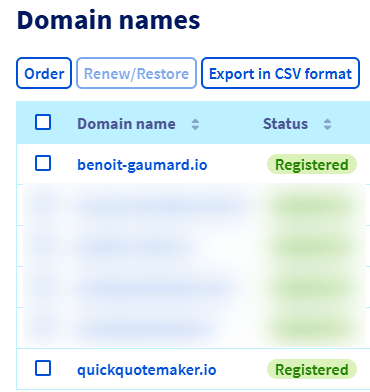
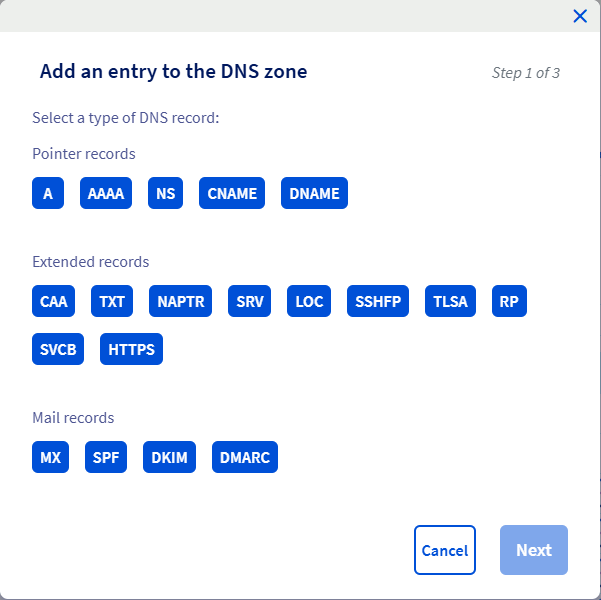
From the OVH interface, I can manage my DNS zone and add any type of record as needed (A, CNAME, NS, MX, TXT, etc.).
For various applications hosted in Azure, I regularly need to create new DNS entries so that my applications can be accessed using domain names such as:
To do this, I currently have to configure DNS settings in two different places (portals):
- The Azure portal: https://portal.azure.com
- The OVH portal: https://www.ovh.com/manager
The goal of this article is to show how to centralize DNS zone management in Azure by delegating the zone currently hosted by OVH.
2. Creating a new Public DNS zone in Azure
Azure DNS allows you to host a DNS zone and manage DNS records for a domain directly in Azure. For DNS queries for a domain to reach Azure DNS, the domain must be delegated to Azure DNS from the parent domain.
Keep in mind, Azure DNS is not the domain registrar, OVH remains the registrar
Steps:
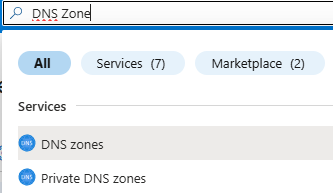
- Sign in to the Azure portal and search for DNS Zone in the Marketplace.
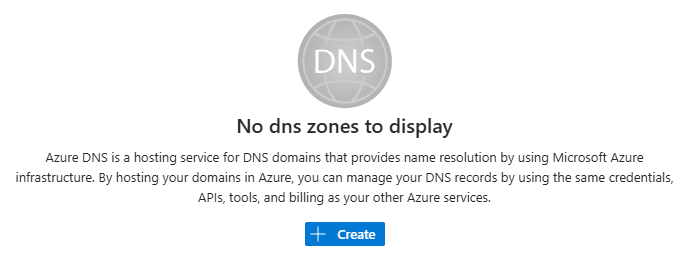
- Click Create.
Select an existing resource group or create (eg.quickquotemaker.io) a new one.
In the Name field, enter the DNS zone name to create.
Choose the resource group location (eg. West Europe).
Add tags if necessary.
Click Create.
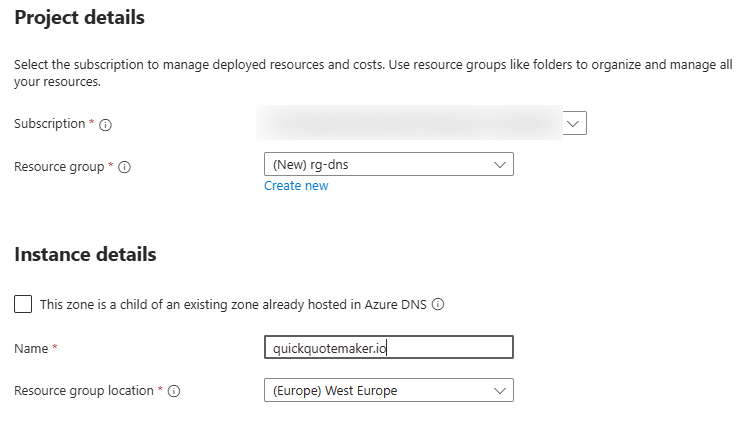
Azure allows you to create a DNS zone with any name (e.g., microsoft.com, google.fr, toto.local), even if you are not the owner. However, to actually manage the zone and add records, you must be the domain owner.
To manage the zone, Azure provides four Name Servers (NS) by default to ensure redundancy in case of failure.
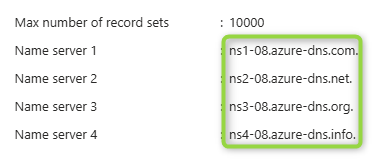
Copy the NS server names and keep them handy, they will be required to configure the delegation in the OVH portal.
3. Delegate the domain
Now that the DNS zone is created and we have the name servers, we need to update the parent domain with the Azure DNS name servers. Each registrar has its own tools (portal, etc.) for managing DNS and modifying name server records.
Steps in OVH:
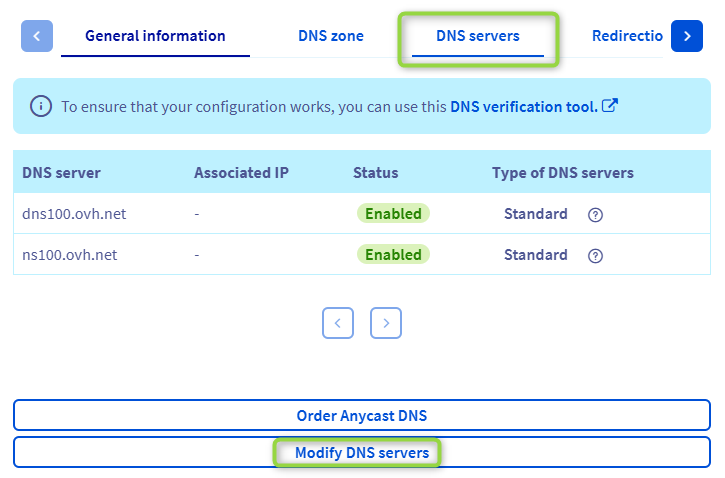
Go back to the OVH portal.
Navigate to the DNS Servers menu.
Click Modify DNS Servers.
Select Use my own DNS.
Add the four Azure DNS name servers (remove the trailing dot).
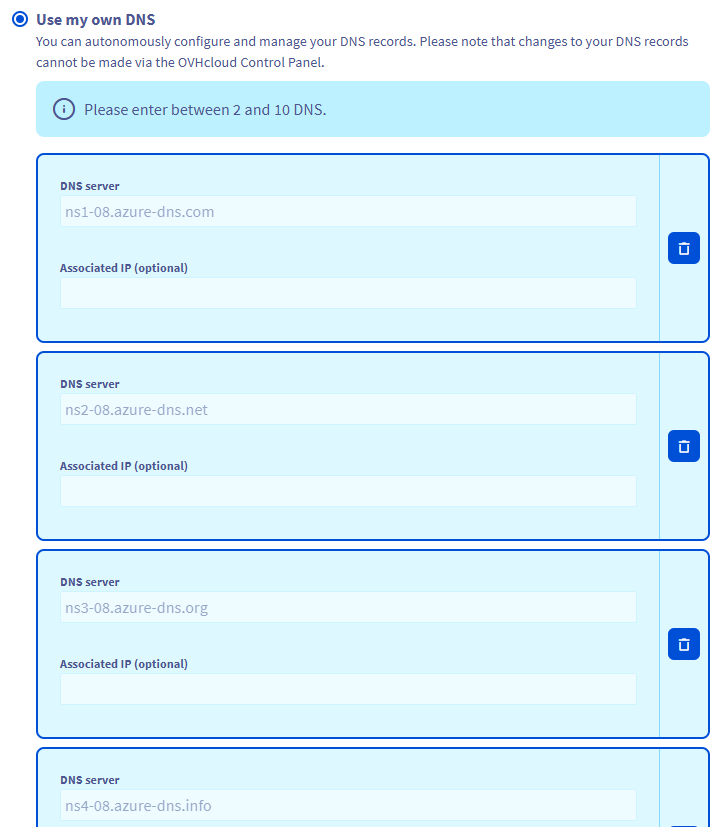
- Delete the existing OVH NS entries.
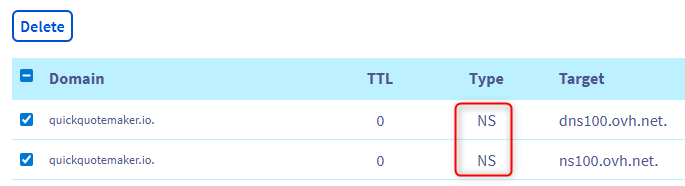
Click Apply Configuration.

- DNS Servers for the zone are now the Azure DNS Servers.
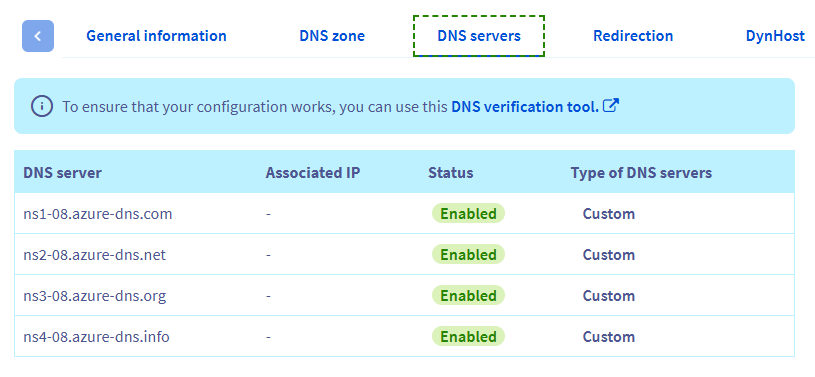
Be careful, your websites and services associated with the domain (mail, FTP, etc.) will be temporarily unavailable during this operation.
4. Create DNS records
Now that Azure DNS is responsible for managing the zone. All administratistes tasks should be done on Azure. Do nothing on OVH portal.
First, You need to recreate the appropriate DNS records (A, CNAME, NS, MX, TXT, etc.) so that services return to normal, to display your website correctly.
To display my website, the first record to create in Azure DNS is an A record pointing to the public IP address of my website provided by OVH.
In Azure DNS, click Add Record set
Leave the Name field empty or enter @ (this corresponds to the root of the domain).
Select record type A.
Leave the default TTL.
Add the public IP address of the website.
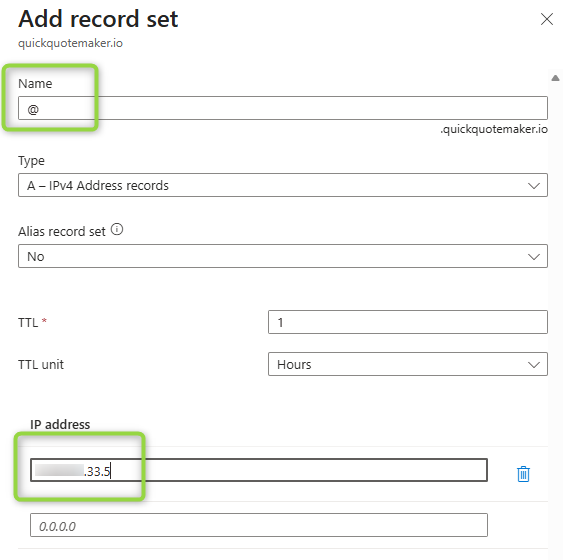
- Once the record is created, you should see the corresponding entry.

- Next, create a www record of type CNAME pointing to the root domain.
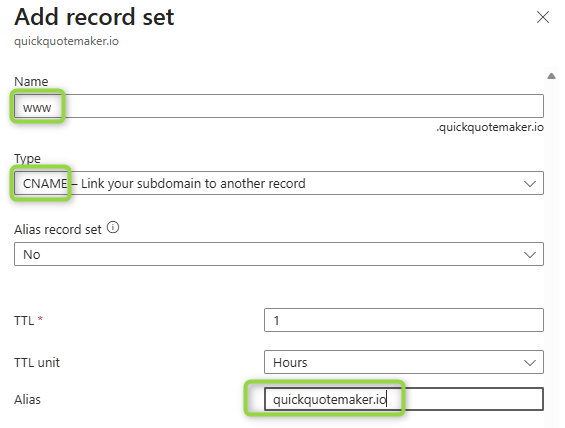
5. Test the delegation
Once the delegation is complete, you can verify that it works using a tool such as nslookup or https://www.zonemaster.net/ to query the zone. You may need to wait 10 minutes or more after delegation before verification. DNS propagation can take some time.
There is no need to explicitly specify the Azure DNS name servers. If the delegation is configured correctly, the standard DNS resolution process will automatically detect the Azure name servers.
From a command prompt, run the following commands:
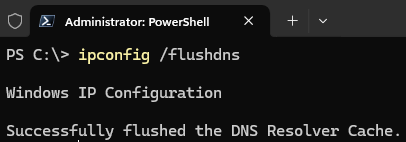
- Clear the cache first
1ipconfig /flushdns
- Then check the SOA with this command
1nslookup -type=SOA quickquotemaker.io
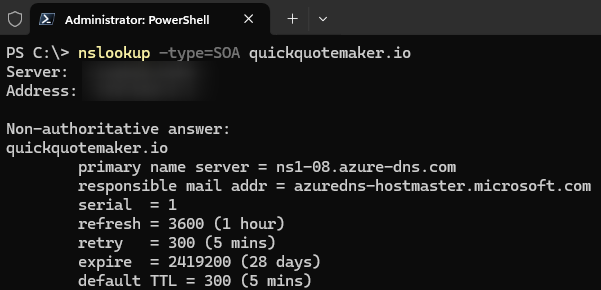
Verify that the response looks like the expected nslookup output.
- To display the name servers, run:
1nslookup -type=NS quickquotemaker.io
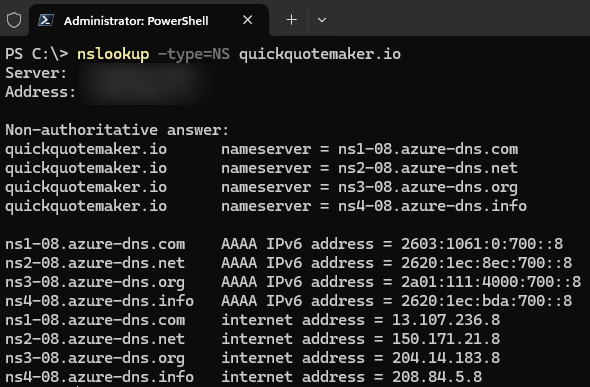
Verify that the response matches the Azure DNS name servers.
Another test can be performed using the www record.
The site is now accessible via both URLs, and DNS record management is performed directly from the Azure portal.
All DNS management actions like add / delete / modify records should be done onbly from Azure only. Add a Delete lock on your DNS resource group to prevent accidental deletion.
Enjoy! 🚀