Connect Azure VM using the native RDP client through Bastion
Connect directly to your Azure virtual machines using the native RDP client through Bastion.
Introduction
Azure Bastion is a fully managed PaaS service that provides secure and seamless RDP/SSH connectivity to your virtual machines directly over TLS from the Azure portal, or via the native SSH or RDP client already installed on your local computer.
Official documentation is available here: https://learn.microsoft.com/en-us/azure/bastion/bastion-overview
Native client support is a feature in Azure Bastion, which allows users to use native SSH and RDP programs to connect to Bastion instead of using the Azure Bastion web interface.
Prequisites
- Azure Bastion deployed
Native client support must be enabled on Bastion to create the tunnel.
Azure Bastion Native Client Support
Instead of logging in through the Azure Portal, Azure Bastion now allows users to connect using their native RDP or SSH clients.
Go to Bastion --> Settings --> Configuration --> Native client support.
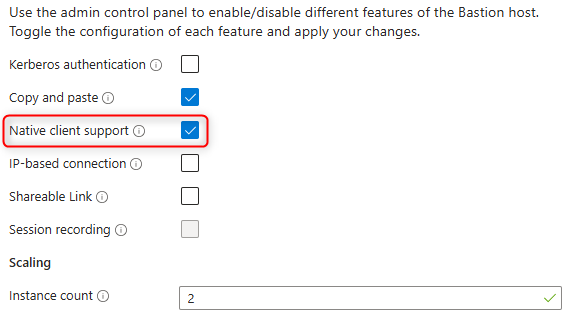
Create the RDP tunnel
Open a terminal:
1az login --tenant <your_tenant_id> --use-device-code
2az account set --subscription <your_subscription_id>
Define your variables to target the VM to connect to:
1$BastionName = "bstbga01"
2$BastionRG = "rg-bst"
3$TargetVmResourceId = "/subscriptions/xxx-xxx-xxx-xxx/resourceGroups/rg-vm/providers/Microsoft.Compute/virtualMachines/vmapp001"
To get the VM resoure Id go to:
Virtual machines --> Select Your VM --> Overview --> JSON View --> Copy the Resource ID.
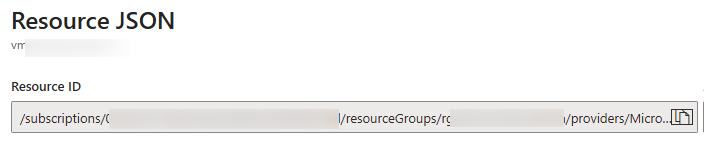
Create the tunnel:
1az network bastion tunnel --name $BastionName `
2    --resource-group $BastionRG `
3    --target-resource-id $TargetVmResourceId `
4    --resource-port "3389" `
5    --port "50022" `
6    --subscription xxx-xxx-xxx-xxx
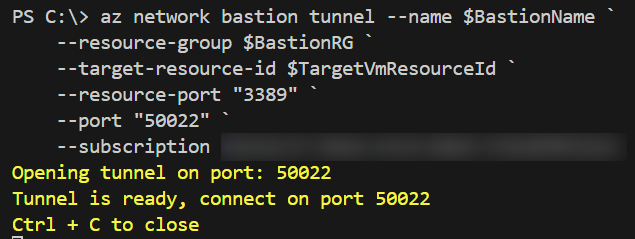
Open RDP connection to the VM:
1mstsc /v:127.0.0.1:50022
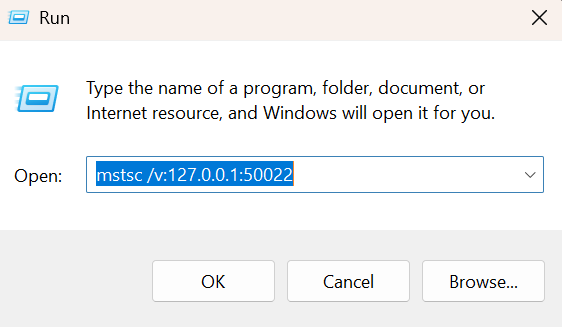
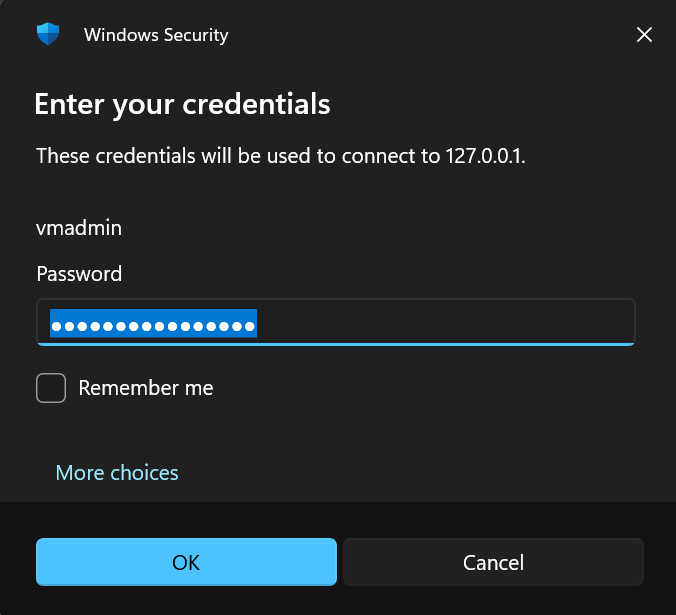
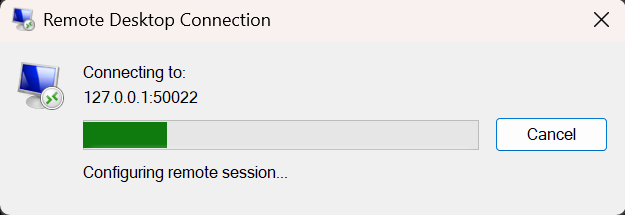
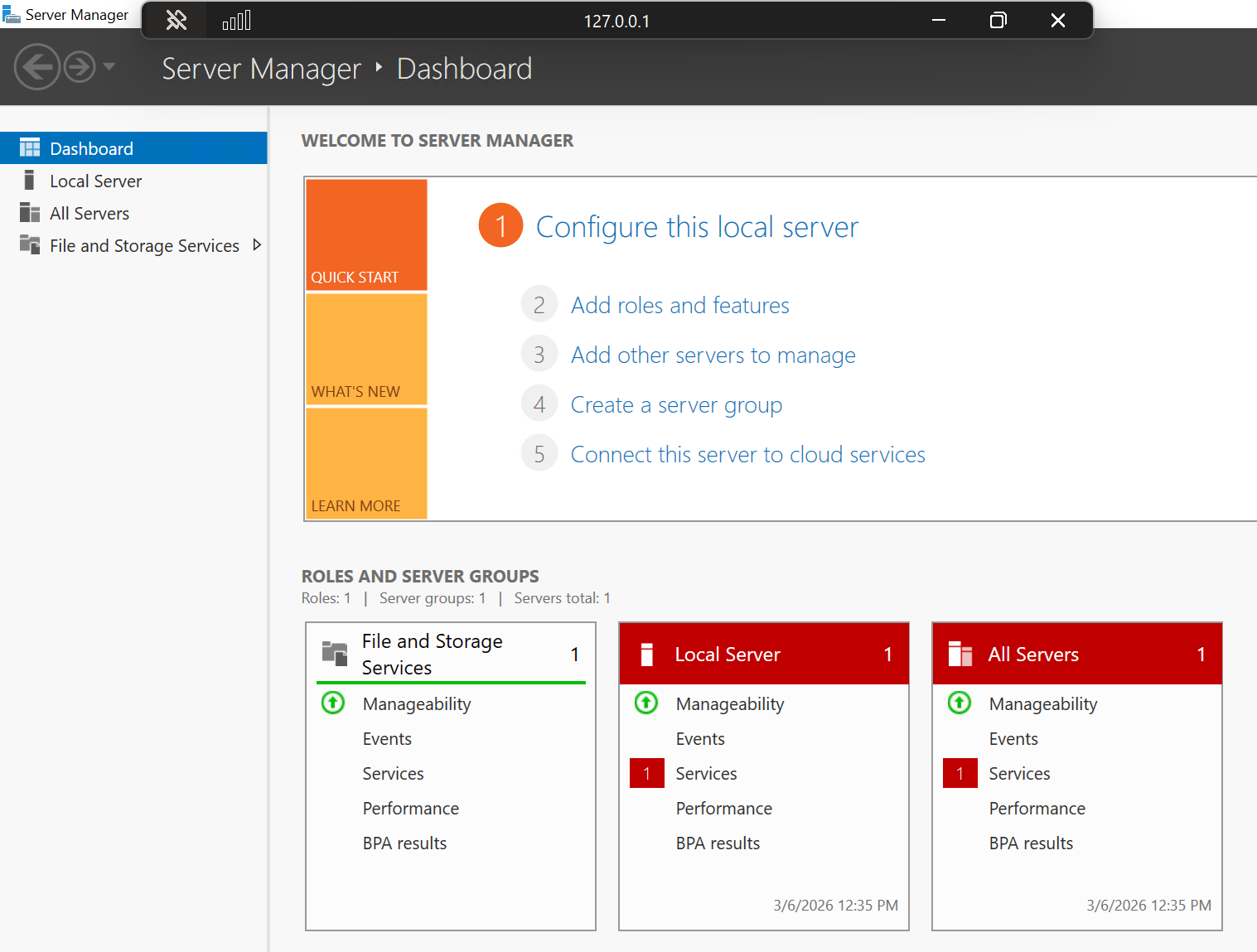
You should now be connected to the target VM through the Azure Bastion tunnel. You can use this connection to manage the VM as needed.
Don't forget to close the tunnel when done with Ctrl + C in the terminal where you started the tunnel.
Enjoy!