

Azure Bastion is a fully managed PaaS service that provides secure and seamless RDP/SSH connectivity to your virtual machines directly over TLS from the Azure portal, or via the native SSH or RDP client already installed on your local computer.
Introduction
Official documentation is available here: Azure Bastion overview .
Native client support is a feature in Azure Bastion that lets you use native SSH and RDP programs to connect to Bastion instead of using the Azure Bastion web interface.
Prerequisites
- Confirm an existing Bastion SKU that supports native-client tunnelling (Standard or Premium; verify the current feature matrix).
- Use a Windows desktop with
mstsc, an authenticated Azure CLI session, and the intended tenant/subscription. - Confirm the documented Reader permissions on the Bastion, target VM and its NIC, plus valid guest login rights; network reachability is separate from guest authentication.
- Confirm RDP is listening on the target VM and NSG/guest-firewall rules allow the Bastion path, not arbitrary Internet sources.
Reference versions and technical execution validation: not recorded. Check Connect using a native client before changing a production deployment.
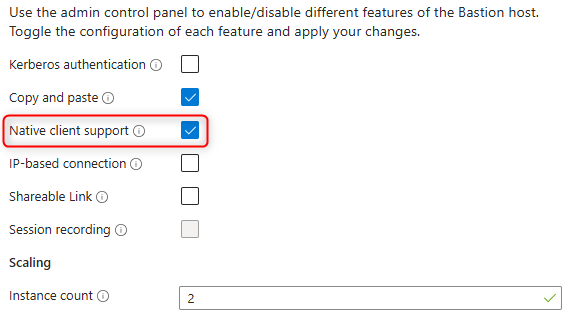
Native client support must be enabled on Bastion to create the tunnel.
Azure Bastion native client support
Instead of logging in through the Azure portal, Azure Bastion now allows users to connect using their native RDP or SSH clients.
Go to Bastion → Settings → Configuration → Native client support.
Enable and save. Reopen Configuration and confirm native client support remains enabled before creating a tunnel.
Create the RDP tunnel
1. Select context and open the tunnel
The commands below use PowerShell syntax, including backtick continuation, even though the executable is Azure CLI. Open a PowerShell terminal:
az login --tenant <your_tenant_id> --use-device-code
az account set --subscription <your_subscription_id>
Define your variables to target the VM to connect to:
$BastionName = "bstbga01"
$BastionRG = "rg-bst"
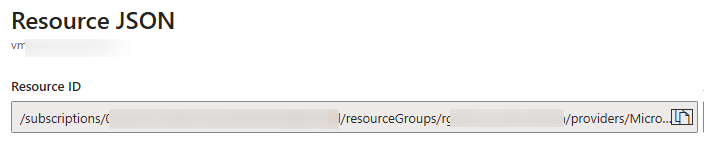
$TargetVmResourceId = "/subscriptions/xxx-xxx-xxx-xxx/resourceGroups/rg-vm/providers/Microsoft.Compute/virtualMachines/vmapp001"To get the VM resource ID, go to Virtual machines → select your VM → Overview → JSON View → copy the resource ID.
Create the tunnel:
az network bastion tunnel --name $BastionName `
    --resource-group $BastionRG `
    --target-resource-id $TargetVmResourceId `
    --resource-port "3389" `
    --port "50022" `
    --subscription xxx-xxx-xxx-xxx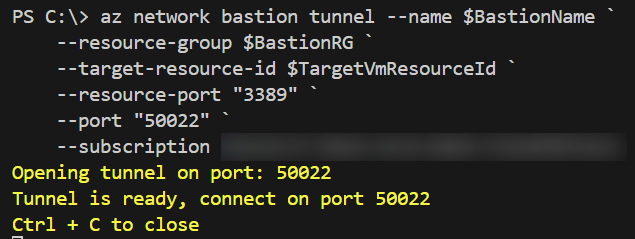
2. Open the client
Keep the tunnel terminal open and use a second terminal to launch the local client:
mstsc /v:127.0.0.1:50022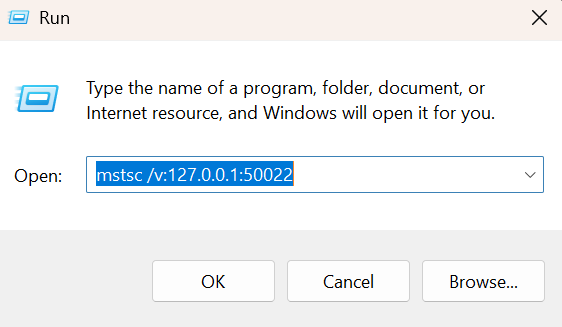
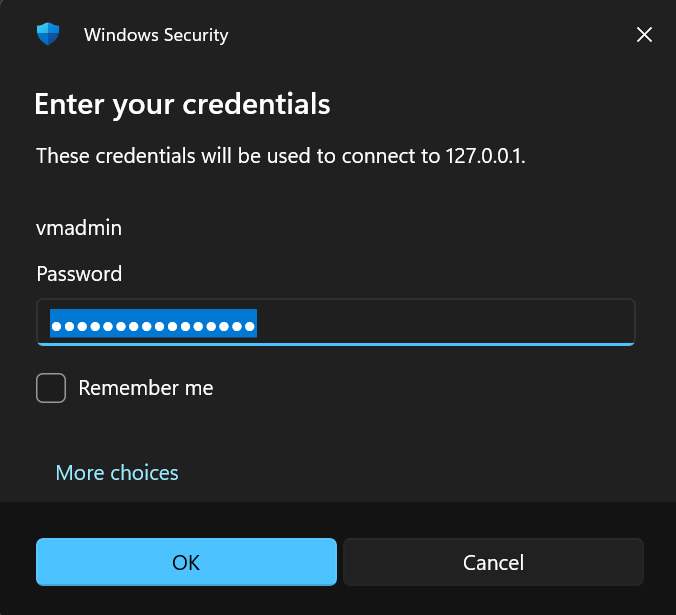
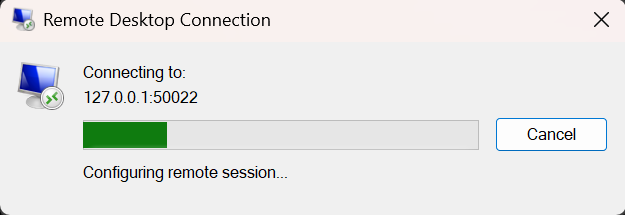
If the client presents a certificate warning, verify that the certificate/target is the expected VM through your organisation's trusted inventory. Do not treat every warning as safe to accept.
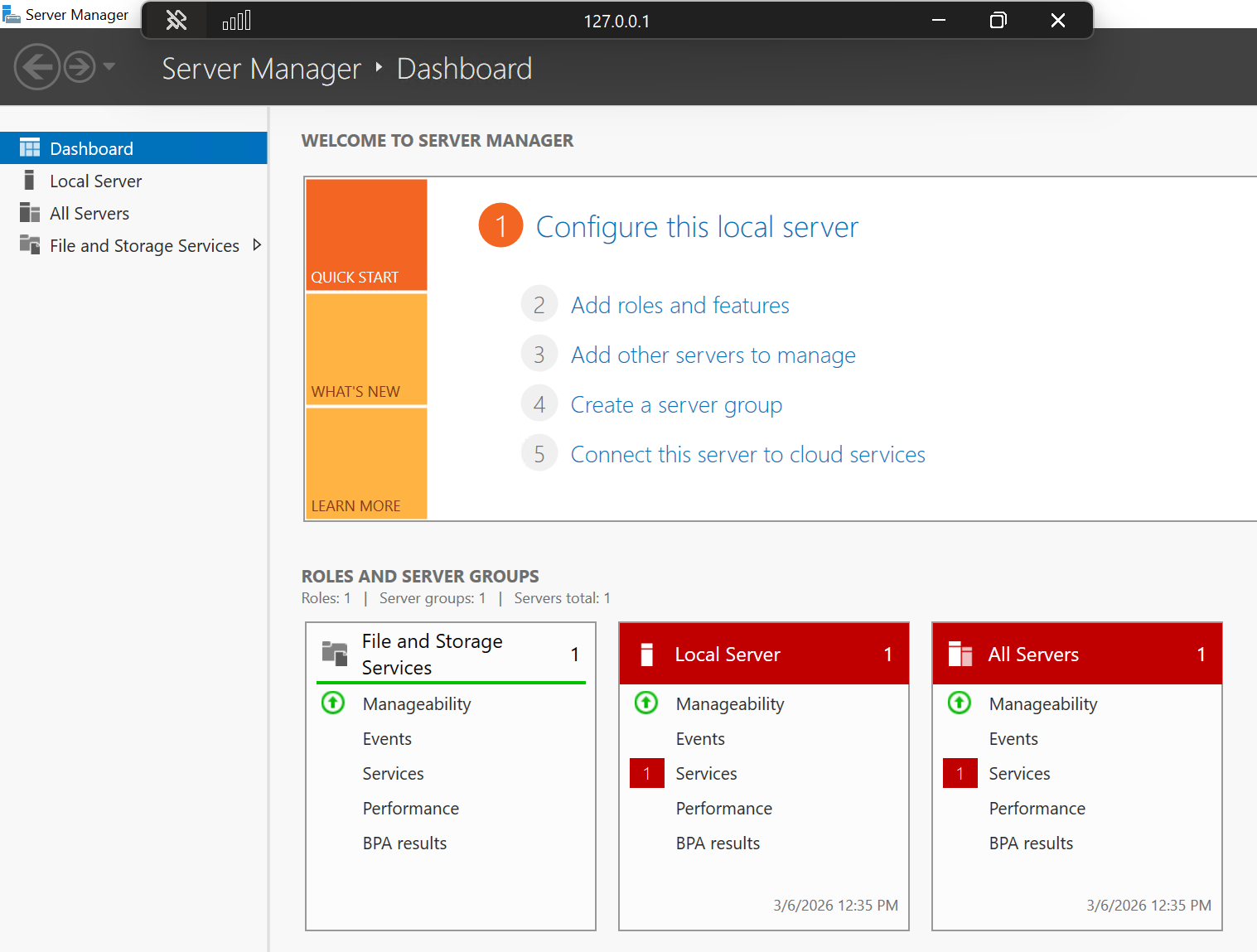
You should now be connected to the target VM through the Azure Bastion tunnel. You can use this connection to manage the VM as needed.
Don't forget to close the tunnel when you're done by pressing Ctrl+C in the terminal where you started it - otherwise it keeps running and listening on the local port.
3. Close and troubleshoot
Sign out of the RDP session, then press Ctrl+C in the tunnel terminal. Reopening the RDP connection on that local port should no longer work.
| Symptom | Check |
|---|---|
| Tunnel creation denied | Subscription, Bastion SKU/configuration and Reader permissions |
| Local port already used | Choose a free local port and use the same port in mstsc |
| Tunnel opens, RDP times out | VM running state, target RDP listener, network and guest firewall |
| RDP login rejected | Guest credentials/login permissions; the tunnel does not grant them |